
Appearance
Recipes
Updated walkthrough (September 2026)
The Recipes screen is a recipe list with a bulk editor — it does not have a New Recipe wizard. Single recipes are managed from the stock item itself (the Made toggle on the Edit Stock Item screen). If your screen does not match the steps below, update your app or ask your supervisor.
Goal
You need to define how a finished product is made from raw ingredients — for example, a cooked fish portion, a portion of fries, or a meal deal — so the till can sell it and the kitchen can produce it through Production.
Where this happens
- In the back office (Core App): Stock Management → Recipes. Tills do not create recipes — they use them when ringing sales that pull from a recipe.
A recipe is the bill of materials for a finished product. It links the sellable item to the raw ingredients that are used to make it, so the kitchen knows what to cook and the till knows what to deduct.
Prerequisites
- Sign in to the Core App first — see Login. You land on the dashboard after choosing your store. Needs the right user permission. These menu items follow your user's permissions. If the item shows a restriction marker - or clicking it does nothing - your user does not have permission yet. Ask your franchise admin to grant it (see Who can do what (permissions)).
- You are signed in to the correct store with permission for Stock Management.
- The finished product exists in the stock list — see Stock if it does not.
- Every raw ingredient on the recipe exists in the stock list, with its unit (for example, kilograms or eaches) set up.
Steps
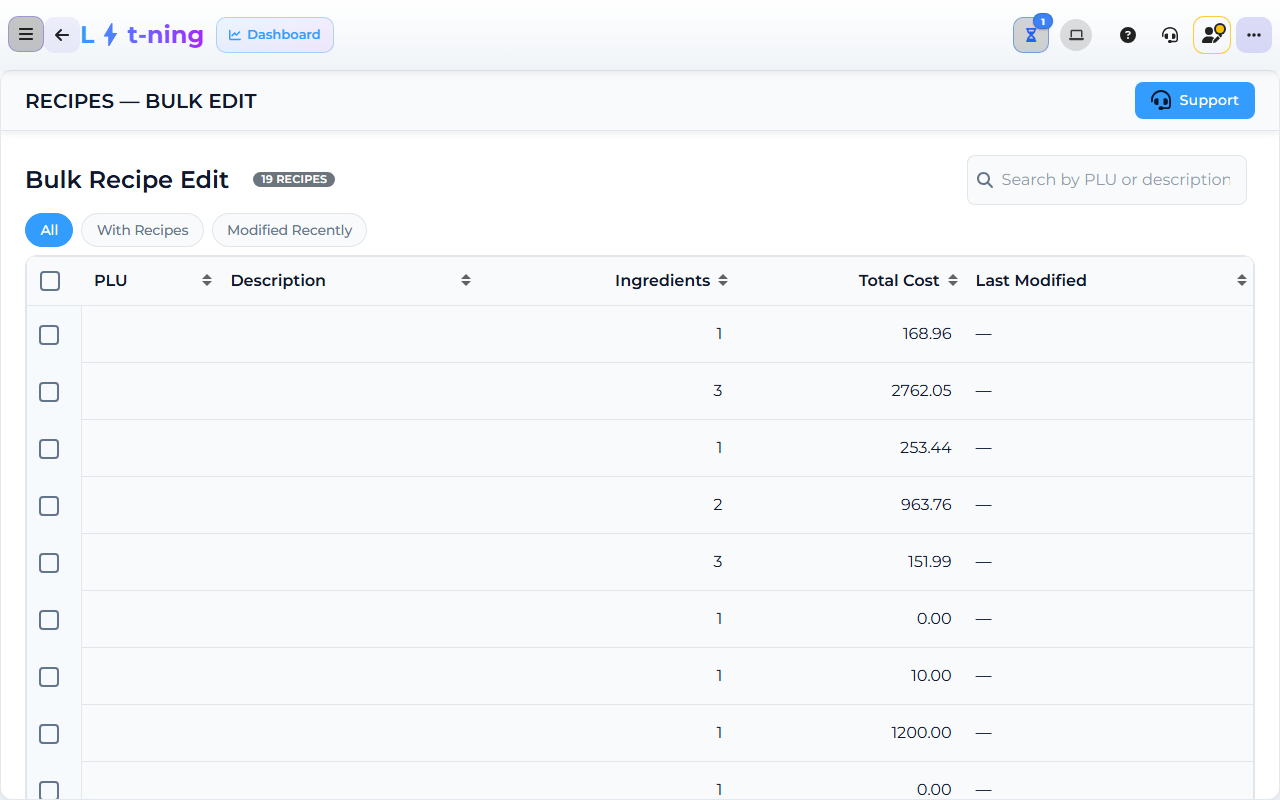
The image shows the Core App Recipes screen. Screens may differ slightly by version.
1. Open Recipes
- In the sidebar, expand Stock Management.
- Click Recipes. The RECIPES — BULK EDIT screen opens, with the Bulk Recipe Edit heading and the total number of recipes.
2. Find the recipes to change
- Use the search field (PLU or description) to narrow the list.
- Use the filter chips to focus the list: All, With Recipes (items that have a recipe), or Modified Recently.
- Tick the recipes you want to change — the header shows how many are selected.
3. Apply a bulk change
- Replace Ingredients — overwrite the ingredient list of every selected recipe. In the edit box you can switch between REPLACE (overwrite each recipe's ingredients) and APPEND (add the list to each recipe), build the shared ingredient list, then click Apply to N Recipes and confirm.
- Add Ingredient to All — add one ingredient to every selected recipe.
- Remove Ingredient — pick a single ingredient and remove it from all selected recipes.
- Delete Recipes — remove the selected recipes; the app asks you to confirm first.
- When the run finishes, a results box lists what changed on each recipe.
Managing a single recipe
To create or fine-tune one item's recipe, open the item through Stock Management → Edit Stock Item and use the Made toggle — the recipe editor opens from there, and the kitchen can run the recipe through Production.
Expected result
- The recipe list matches the items that have recipes, and the bulk change is applied to every selected recipe.
- Every ingredient on a recipe has a quantity in the right unit.
- The recipe is linked to Production so the kitchen can run it and update stock when a batch is cooked.
Edge cases
- The finished product is not in the stock list. Create it first — see Stock.
- An ingredient is in the wrong unit. Fix the unit on the ingredient's stock record before running the recipe change. Do not "convert" by hand in the recipe — the till and Production will use the stock unit.
- Two recipes exist for the same finished product. Pick the one the kitchen uses and retire the other one. Two active recipes for the same item will double-deduct ingredients.
- You need to change an ingredient quantity. Use Replace Ingredients with the corrected quantity — Production uses the latest saved values for new batches.