
Appearance
Specials
Goal
Create a discount, multi-item, or combo special for the right items and dates, and manage the specials you already have — search, edit, archive, and re-activate.
Where this happens
- In the back office (Core App): open Stock Management → Specials to search, edit, archive, and re-activate specials. New specials are created from the Create Special screen (the floating + button).
- Sales Management → Active Specials shows the specials that are currently running, with their start and end dates.
- On the till (Retail POS App / Restaurant POS App): the till pulls specials automatically; the salesperson rings up the qualifying items and the till applies the discount.
A special is made in two parts: first the special's information (name, type, dates, and times), then the items it applies to — the app takes you to the item screen for the type you chose.
Problem
You want a promotion to apply consistently at the till for the right items and dates.
Prerequisites
- Sign in to the Core App first — see Login. You land on the dashboard after choosing your store.
- Needs the right user permission. These menu items follow your user's permissions. If the item shows a restriction marker - or clicking it does nothing - your user does not have permission yet. Ask your franchise admin to grant it (see Who can do what (permissions)).
- You know the promotion's name, type, and the dates and times it should run.
Steps
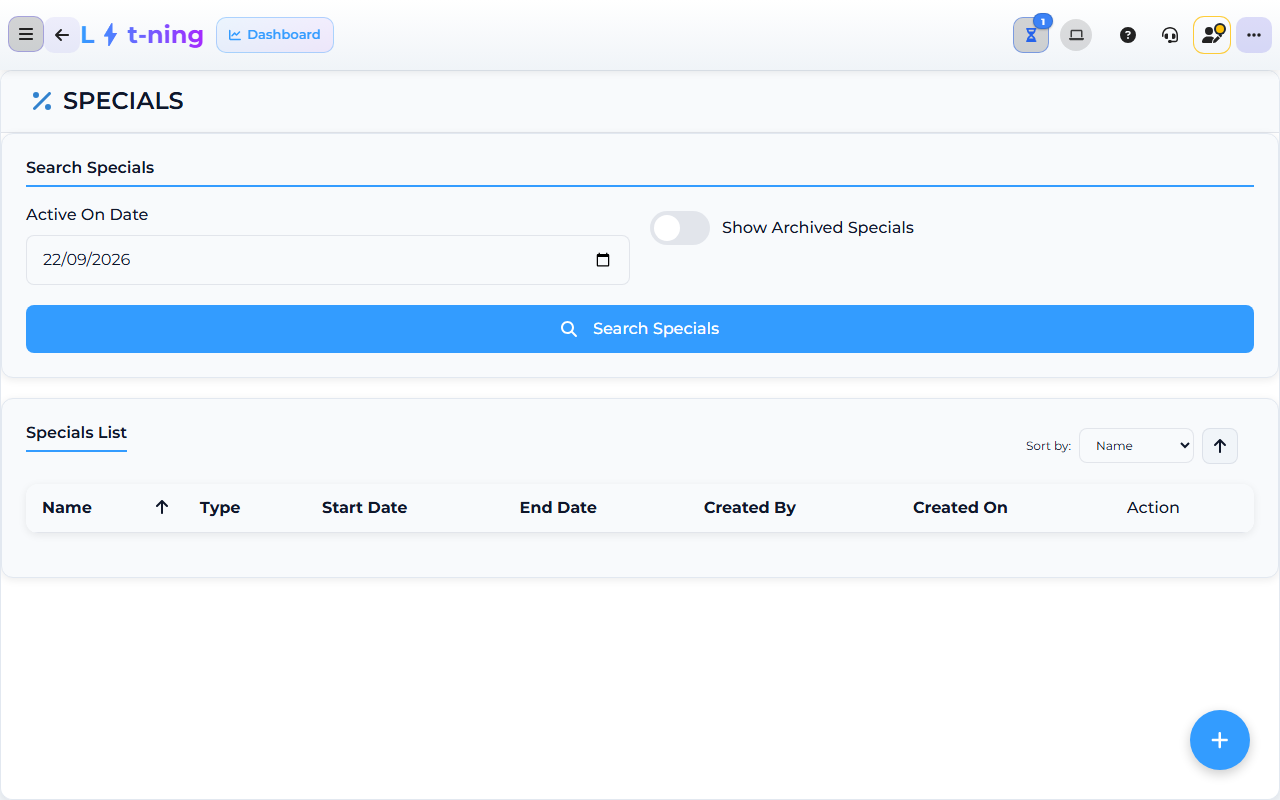
The image shows the Core App Specials screen. Screens may differ slightly by version.
1. Open Create Special
- In the sidebar, expand Stock Management and click Specials.
- Click the floating + button. The Create Special screen opens.
If you arrived from the Expiring Stock notification, a banner lists the items that were flagged — create the special below, then add those items on the next screen. Click Dismiss if you do not need the list.
2. Fill in the special's information
- Enter a Name for the special.
- Pick the Special Type:
- Discount — a price or percentage discount on items.
- Multiple — a multi-item deal (for example, buy a quantity and pay a set price).
- Combos — a combo of different items sold together.
- Set the Start date, End date, Start time, and End time.
- Click Create Special.
- If anything is missing, the screen tells you "Please fill all the fields" — complete every field and click Create Special again.
3. Add the items
The app opens the item screen for the type you chose:
- Discount opens the discount item screen.
- Multiple opens the multi-item screen.
- Combos opens the combo screen.
Search for and add each item the promotion applies to. Use an item group or case pack when the promotion covers more than one item. Save your items — the special now exists with its items attached.
4. Check it in Active Specials
- Open Sales Management → Active Specials.
- Find your special in the list — each entry shows its name, type, and start and end dates. If the list shows "No active specials found.", the promotion has not started yet — check the start date you set.
- Click a special to open its Special Details (name, type, start, and end dates).
Managing existing specials
On Stock Management → Specials:
- Click Search Specials to list the specials. Turn on Show Archived Specials to include archived ones.
- Sort the Specials List by name, type, or start and end dates, and click Export if you need a copy.
- Click Edit on a special to change it — the app opens the same item screen for its type.
- Click Archive to take a running special out of use (confirm the prompt to continue). Bring it back later with Activate — the screen confirms with "Special Activated Successfully".
Expected result
The special appears in Active Specials for its start and end dates, and a test sale at the till applies the expected price for the items you picked.
Edge cases
- The special will not save. Every field on the Create Special screen is required — the screen warns "Please fill all the fields". Check the name, type, dates, and times.
- The discount is not applied at the till. Check the dates and times, the items attached to the special, and whether the special's start time has passed.
- A price looks wrong. Pause the sale, check the special definition under Specials, and do not promise the customer an unapproved price.
- The promotion should end early. Archive it from Stock Management → Specials and tell your supervisor. Archived specials can be re-activated with Activate if the decision changes.
- You flagged items from Expiring Stock. Create the special as normal, then add the flagged items on the item screen — the banner listed them so they are not forgotten.