
Appearance
Franchise stock templates
Goal
Roll out the same Quick Link Items, Store Groups, and Stock Templates across one or more stores in a single action, so each new store starts with the right buttons on the till and the right category rules in the back office.
Where this happens
- In the back office (Core App): open System & Settings → System Configuration → Franchise Management → Franchise Stock (route
/franchise/stock), then Stock Templates (route/franchise/stock/templates). The Wiki groups this under 'Administration' because only franchise admins use it.
Only franchise admins change templates. Supervisors and cashiers see the result on the till.
Prerequisites
- You are signed in as a franchise admin.
- You have approval from the franchise owner to change the franchise-wide templates.
- You know which stores are affected — a template change applies to the stores you pick, not to all stores at once.
- You have a short list of the Quick Link Items and case-linking rules the new store needs.
Steps
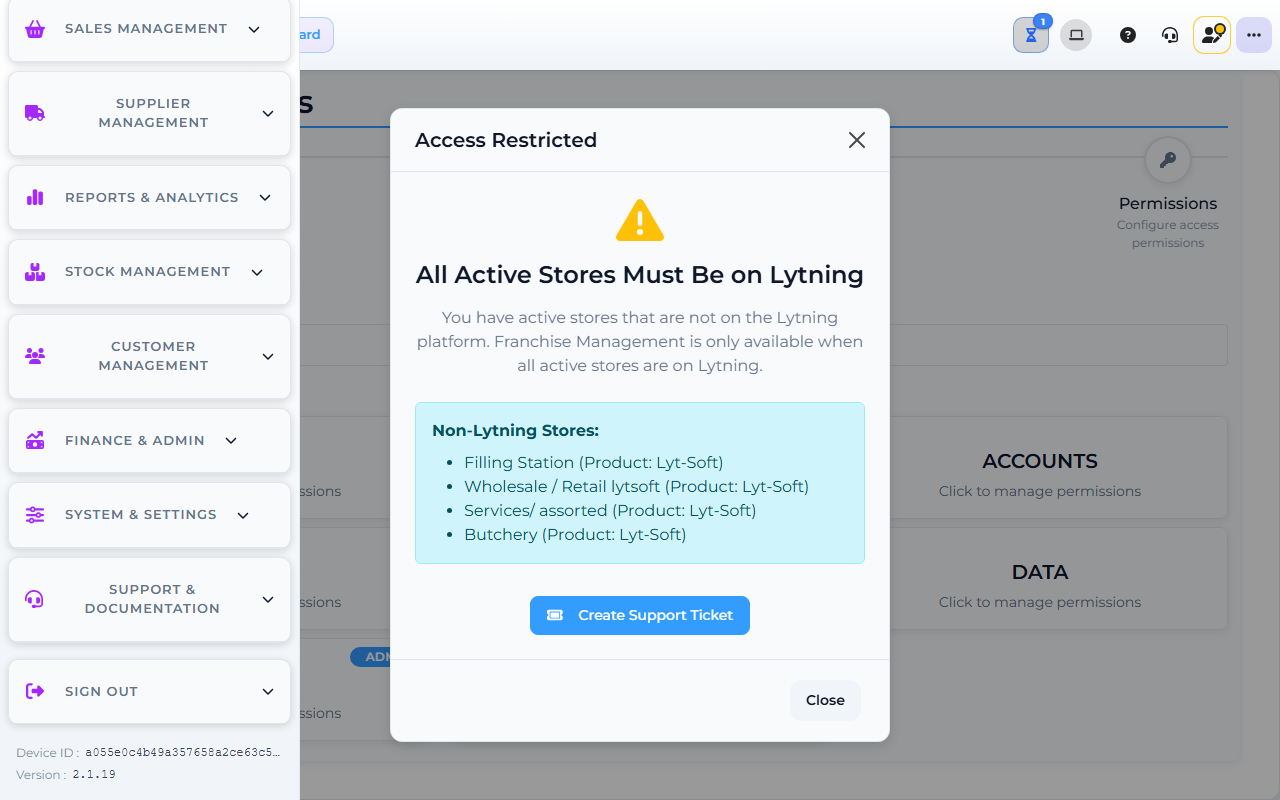
The image shows the Core App Franchise Management screen. Screens may differ slightly by version.
1. Open Franchise Stock
- In the back office, open System & Settings.
- Click System Configuration.
- Click Franchise Management.
- Click Franchise Stock (the Manage and transfer stock between branches screen).
The page shows four action buttons: Stock templates, Store groups, Quick Link Items, plus page-level Home, Stock Dashboard, and Change main store.
2. Open Stock Templates
- On the Franchise Stock page, click Stock templates.
The Stock Templates screen (heading Stock Templates / subtitle Create and manage reusable stock sync templates) shows a Main Store line (only visible when a main store is set) and a table of templates.
3. Create or pick the template
- Click Create Template to author a new one — this opens the FranchiseTemplateCreate screen at
/franchise/stock/templates/new. - Or click an existing template row's Edit link to change it.
- The table columns are Name, Active (toggle), Auto-sync (toggle), Target stores (count), Last run (timestamp), and Action (row actions).
- The row actions are View (template detail), Edit, Apply (run the template against target stores), Runs (history), and Delete.
If no template fits, ask the franchise owner to author a new template. Do not invent one on your own.
4. Apply to one or more stores
- In the template row, click Apply. The FranchiseTemplateApply screen opens at
/franchise/stock/templates/<templateId>/apply. - Pick the target store(s) the template should run against. A template applies to the stores you pick — not to a region or all stores at once.
- Confirm the items the template will add. Remove any item the target store does not need before saving.
- Click Save / Submit.
The template is now in the target store(s). Other stores in the franchise are not changed.
5. Verify the items appear
- Sign in to the target store from the till (or have the supervisor do it).
- Open the till home screen and confirm the Quick Link Items are the buttons the template specified.
- Ring a quick test sale to confirm the case-linking rule works on a flagged item (for example, a soda case that converts to six bottles).
- If anything is missing or wrong, return to Stock Templates, edit the template, then re-apply.
Expected result
- The target store has the right Quick Link Items on the till home screen.
- Case-linking rules ring correctly at the till.
- Other stores in the franchise are not changed.
- The change is recorded against the franchise admin's name and the target store.
Edge cases
- The wrong template was applied to the store. Revert by re-applying the correct template, or remove the extra items from the till one by one. Confirm with the franchise owner before saving.
- An item does not ring as expected. Check the case-linking rule on the template. If the rule is right, check the item's Stock Categories — the rule may not match the category.
- The template change went to the wrong stores. Stop and tell the franchise owner which stores were affected. Do not roll back without approval.
- You do not see Franchise Stock Templates. Your role does not include it; only the franchise admin can change templates.
- The Quick Link Items overlap each other. Use shorter labels and group the items by category. Ask the franchise owner to adjust the template.