
Appearance
Integrations
Goal
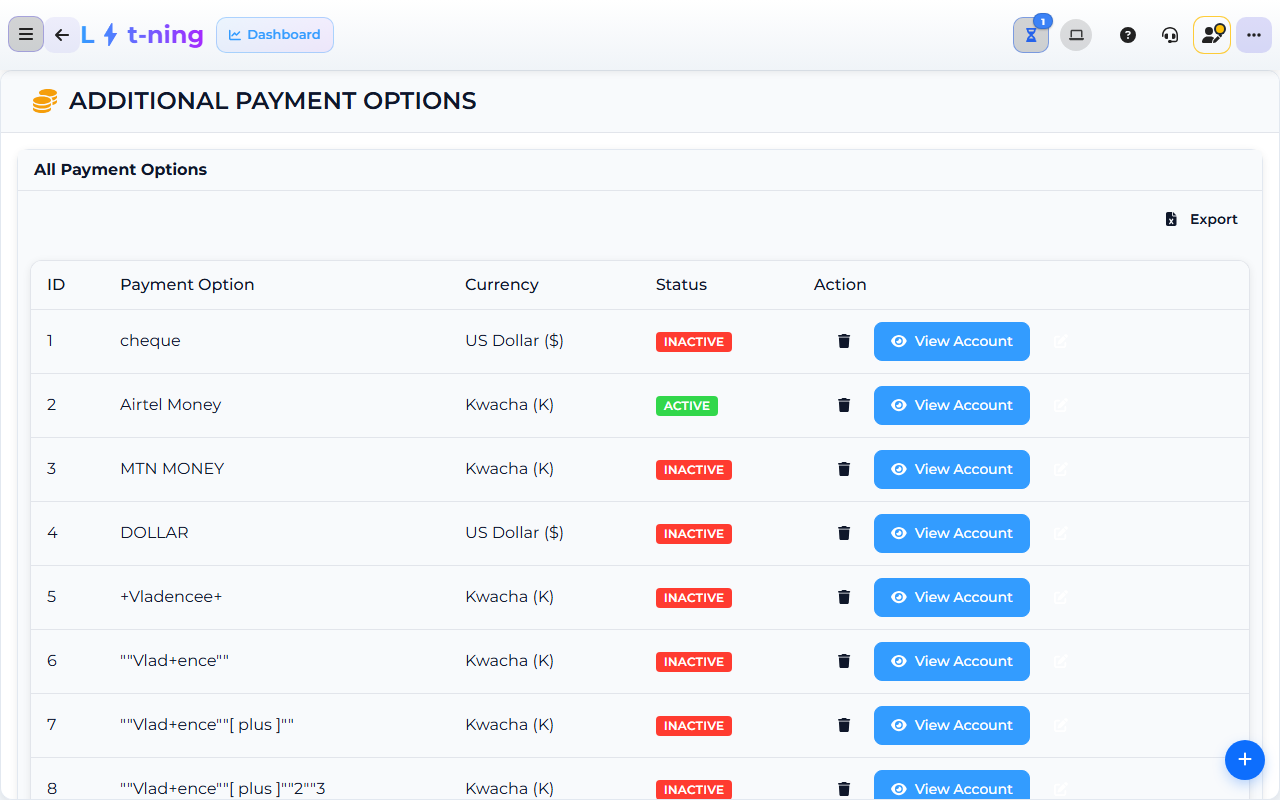
The image shows the Core App Payment Methods screen. Screens may differ slightly by version.
Check whether an accounting, payment, or invoicing connection is ready, and tell Support what they need when a sync did not produce the expected result.
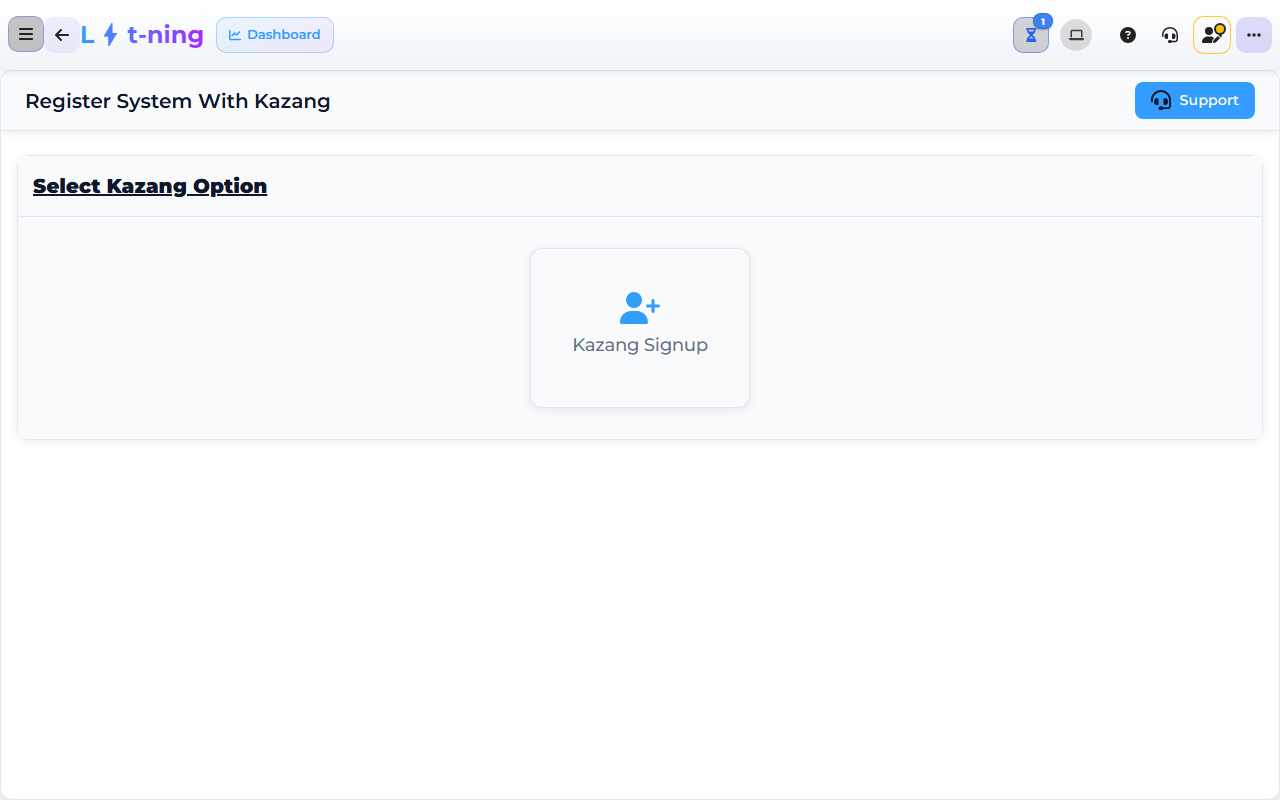
The image shows the Core App Kazang Settings screen. Screens may differ slightly by version.
Where this happens
- In the back office (Core App): Add-ons & Integrations (Reset Account, Lyt-Accounting, Manage Online Store, Cash.co.zm, Loyalty Setup — SAGE / SAGE 300 / SAP appear here when the add-on is enabled for your franchise); System & Settings → Till & Payments (Smart Invoicing, Kazang Settings, Payment Methods).
Integrations move approved information between Lyt-ning and another business system. Staff do not need to know the connection details; they need to know what result to expect and when to call Support.
Problem
You need to check whether an accounting, payment, or invoicing connection is ready, or a sync did not produce the expected result.
Prerequisites
- Your supervisor has confirmed which integration your store uses.
- You have the store, date range, invoice or stock reference, and the time of the attempted sync.
- Never enter passwords, private keys, or connection details in a ticket.
What staff may see
Third-party integrations
| Integration | Staff outcome |
|---|---|
| SAGE | Sales, invoices, stock, and customer information can be sent for accounting work when enabled. |
| SAGE 300 | Approved invoice, stock, and customer information can be synchronised for finance and stock teams. |
| SAP | Staff may see invoice, stock, debtor, or sync status screens when the store uses SAP. |
| Kazang | A supported mobile-money payment can be selected at the till and its record checked afterwards. |
| Smart Invoice (ZRA — Zambia) | The till prints a Smart Invoice receipt with a QR code and a Mark ID for every sale — ZRA's mandatory fiscal-receipt system since 1 July 2024; VAT input claims require Smart Invoice-generated receipts from 1 January 2026. Confirm any tax decision with your accountant or ZRA. See ZRA Smart Invoice. Requires subscription; pending sign-up shows in the dashboard banner — contact Support if the banner is still visible after sign-up. |
Paid add-ons
| Add-on | What it does |
|---|---|
| Reset Account | Add-ons & Integrations → Reset Account (start over after a reset). |
| Manage Online Store | Add-ons & Integrations → Manage Online Store (sell to remote customers). |
| Cash.co.zm | Add-ons & Integrations → Cash.co.zm (cash-on-delivery extension). |
| Loyalty Setup | Add-ons & Integrations → Loyalty Setup (points programme). |
Steps: check an integration result
- Confirm the correct store and date range.
- Open the integration option shown in your sidebar.
- Search by the invoice, GRV, payment, or stock reference.
- Check whether the status is complete, pending, or failed.
- If it is pending, do not submit the same transaction again; wait for the normal retry period or ask your supervisor.
- If it failed, record the exact on-screen message and contact Support.
Expected result
The intended transaction has a clear completed status in Lyt-ning or Support has enough information to trace it without asking for credentials.
Edge cases
- A sync appears twice. Do not retry or reverse it yourself; tell your supervisor and Support the reference numbers.
- A payment is taken but not visible. Keep the customer receipt, payment reference, store, and time; ask Support to check it.
- An invoice is rejected. Capture the plain-language message and correct the named field only if the screen tells you how.
- The integration menu is missing. It may not be enabled for your store or role. Ask your supervisor.
Related
- Sales at the till
- Finance and cash control
- ZRA Smart Invoice — Zambia fiscal receipts
- Lytning Analytics
- Support and escalation