
Appearance
Production
Goal
You need to turn raw ingredients into a finished product the till can sell — for example, cook a batch of fish portions or portion a bulk ingredient into sellable units — and have the stock counts, costs, and audit trail updated automatically.
Where this happens
- In the back office (Core App): Stock Management → Production. Tills do not run production — they only sell the finished product.
Production is what the kitchen runs when it cooks a batch of a recipe. It deducts the raw ingredients from stock and adds the finished product, so the till and the kitchen agree on what is available to sell.
Prerequisites
- Sign in to the Core App first — see Login. You land on the dashboard after choosing your store. Needs the right user permission. These menu items follow your user's permissions. If the item shows a restriction marker - or clicking it does nothing - your user does not have permission yet. Ask your franchise admin to grant it (see Who can do what (permissions)).
- You are signed in to the correct store with permission for Stock Management.
- The recipe for the finished product already exists — see Recipes.
- The raw ingredients are in stock (Production will warn you if a line is short).
- The batch size is decided before you start — running partial batches makes the audit trail harder to read.
Steps
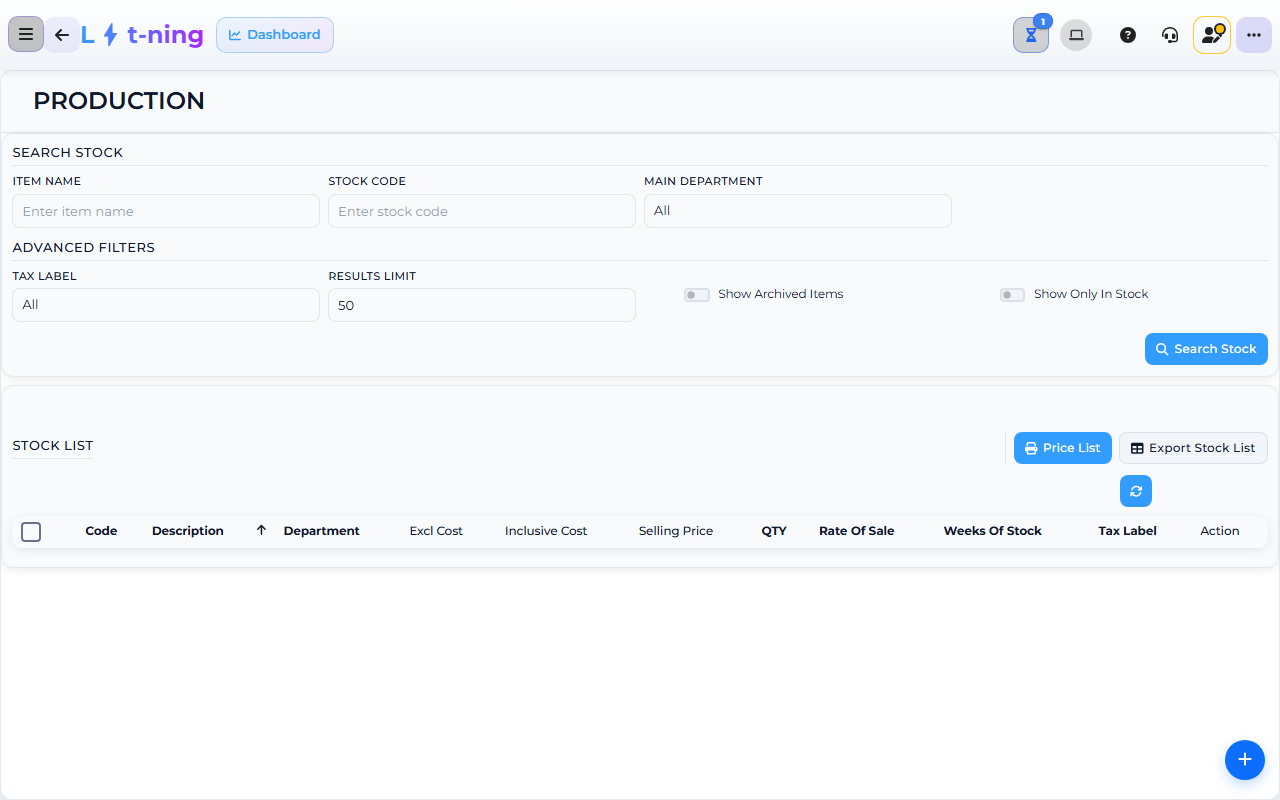
The image shows the Core App Production screen. Screens may differ slightly by version.
1. Open Production
- In the sidebar, expand Stock Management.
- Click Production.
2. Pick the recipe
- Search for the item you want to produce - type in the search box and click Search Stock.
- Click Produce on that item's row. A Production dialog opens showing the item's Description and Current QTY.
- Enter the Production Qty (decimals allowed). The field is required.
- Click Produce.
- Wait for the confirmation - "3 Of Bread Loaf Produced" - and the stock list refreshes with the updated quantity.
Expected result
- The finished product stock count rises by the yield of the run.
- Each ingredient stock count drops by the quantity the recipe says was used.
- The production run has a reference number and a clear note that ties it to the cook and the batch.
- The till can sell the new finished product immediately.
Edge cases
- A recipe is missing from the list. Add the recipe first — see Recipes.
- An ingredient line is short. Receive more stock (see Receiving stock (GRV)), transfer in (see Transferring stock), or reduce the batch size before saving.
- The yield is wrong. Update the recipe first — see Recipes — then re-run production.
- The run saved but the stock counts did not move. Tell your supervisor and check the production run status; the run may need to be completed from the Saved Production Runs list.
- You cooked a different batch than the recipe says. Edit the recipe first, then re-run production — do not change ingredient quantities by hand after the run.
- You need to reverse a production run. Ask your supervisor to reverse the run from the production list. Do not run a second production to "undo" the first.